Using the Terminal
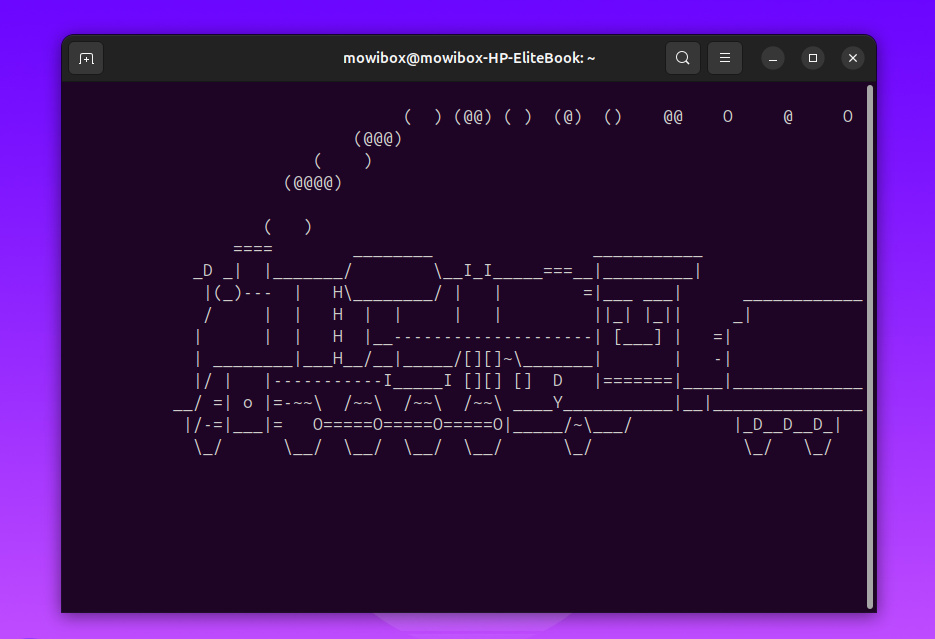
The terminal is a powerful tool for interacting with your operating system. Whether you’re on Linux, macOS, or Windows, learning the basic commands will help you better manage your environment and accomplish tasks more easily.
In this guide, I present the most useful terminal commands along with examples. Feel free to follow the same steps on your side, adapting paths and options according to your system.
Terminal Commands
Let’s start by opening a terminal window (PowerShell on Windows). On Linux distributions (and macOS), you can often open it with the “Ctrl + Alt + T” shortcut (or “Cmd + Alt + T”).
pwd
The pwd command displays the current directory from the root.
mowibox@chroma:~$ pwd
/home/mowibox
Here, you can see that I’m in the /home/mowibox folder. This can be useful when you need to copy and paste the current path somewhere.
ls
The ls command lists the contents of the current directory.
mowibox@chroma:~$ ls
Desktop    Downloads  Pictures  Templates
Documents  Music      Public    Videos
In this example, you see several folders: Desktop, Downloads, etc.
On Windows, the output looks more like this:
mowibox@chroma:~$ ls
PS C:\Users\Mowibox> ls

    Directory: C:\Users\Mowibox

Mode                 LastWriteTime         Length Name
----                 -------------         ------ ----
d-r---        06/25/2025     15:57              Desktop
d-r---        03/14/2025     23:40              Documents
d-r---        06/27/2025     20:26              Downloads
d-r---        03/04/2025     21:21              Music
d-r---        06/27/2025     20:26              Pictures
d-r---        03/12/2025     15:53              Videos
For this tutorial, we’ll illustrate commands in a Linux terminal, so if you’re on Windows, don’t be surprised by the formatting: the commands work the same way.
You can also add the name of a directory after the command to view its contents. Let’s try with the Documents folder:
mowibox@chroma:~$ ls Documents
Folder_1  file.txt
You see the folder Folder_1 and the text file file.txt. And this addition works for many commands we’ll see later!
Warning
Be careful with capital letters! If your folder is called Documents, it will be different from documents or dOCumenTs. The system is said to be case sensitive: commands will only work if the name matches exactly.
cd
The cd command changes the current directory. Let’s enter the Documents folder:
mowibox@chroma:~$ cd Documents
mowibox@chroma:~/Documents$
On each new prompt, the path ~ has become ~/Documents, confirming you’re in the right place. You can list the folder contents again with ls:
mowibox@chroma:~/Documents$ ls
Folder_1  file.txt
You see the same contents as before.
To go back up one level, use .. with cd:
mowibox@chroma:~/Documents$ cd ..
mowibox@chroma:~$
This returns you to the folder above Documents.
Tip
You can go up two levels with cd ../.., three levels with cd ../../.., and so on! Regardless of the current directory, you can also return to the home directory by typing cd or cd ~.
Tip
- To save time, start typing the folder name (e.g.,
DocforDocuments), then press Tab to autocomplete. - If nothing or multiple suggestions appear, press Tab twice to list possible completions.
mkdir
The mkdir Folder command creates the folder Folder in the current location.
Let’s create Folder_2 in Documents:
mowibox@chroma:~$ cd Documents
mowibox@chroma:~/Documents$ mkdir Folder_2
mowibox@chroma:~/Documents$ ls
Folder_1  Folder_2  file.txt
You can also create multiple folders at once. For example, Folder_3 and Folder_4:
mowibox@chroma:~/Documents$ mkdir Folder_3 Folder_4
mowibox@chroma:~/Documents$ ls
Folder_1  Folder_2  Folder_3  Folder_4  file.txt
Warning
Notice why you shouldn’t use spaces in file or folder names. What if you tried mkdir Folder 5?:
mowibox@chroma:~/Documents$ mkdir Folder 5
mowibox@chroma:~/Documents$ ls
5  Folder  Folder_1  Folder_2  Folder_3  Folder_4  file.txt
It created folders 5 and Folder. That’s why we use hyphens (’-’) or underscores (’_’) instead of spaces.
rmdir
Now we have unwanted folders—let’s remove them!
The rmdir command deletes an empty directory. Let’s remove the extra ones:
mowibox@chroma:~/Documents$ ls
5  Folder  Folder_1  Folder_2  Folder_3  Folder_4  file.txt
mowibox@chroma:~/Documents$ rmdir 5 Folder Folder_3
Folder_1  Folder_2  Folder_4  file.txt
Tip
You can also delete a folder that is not empty with the command rm -r folder_name, or even rm -rf to force the deletion of a protected folder. Since we’re talking about rm, let’s move on to that next!
rm
The rm filename.ext command removes the file filename.ext. Let’s test it by creating a file.
On Linux, you can use touch to create a file (we’ll cover that later). For now, let’s assume goodbye.txt exists and that it’s nastily deleted (it’s only goodbye):
mowibox@chroma:~/Documents$ ls
Folder_1  Folder_2  Folder_4  file.txt  goodbye.txt
mowibox@chroma:~/Documents$ rm goodbye.txt
mowibox@chroma:~/Documents$ ls
Folder_1  Folder_2  Folder_4  file.txt
mv
The mv command moves or renames a file/folder. Examples:
mv Folder_4/ Folder_3renamesFolder_4toFolder_3(sinceFolder_3did not exist in the current directory).Terminal mowibox@chroma:~/Documents$ ls Folder_1 Folder_2 Folder_4 file.txt mowibox@chroma:~/Documents$ mv Folder_4/ Folder_3 mowibox@chroma:~/Documents$ ls Folder_1 Folder_2 Folder_3 file.txtmv Folder_3/ Folder_1movesFolder_3intoFolder_1(sinceFolder_1already exists in the current directory).Terminal mowibox@chroma:~/Documents$ ls Folder_1 Folder_2 Folder_3 file.txt mowibox@chroma:~/Documents$ mv Folder_3/ Folder_1 mowibox@chroma:~/Documents$ ls Folder_1 Folder_2 file.txt mowibox@chroma:~/Documents$ ls Folder_1 Folder_3mv Folder_2/ Folder_1/Folder_4moves and renamesFolder_2toFolder_4insideFolder_1(sinceFolder_4did not exist insideFolder_1).Terminal mowibox@chroma:~/Documents$ ls Folder_1 Folder_2 file.txt mowibox@chroma:~/Documents$ mv Folder_2/ Folder_1/Folder_4 mowibox@chroma:~/Documents$ ls Folder_1 file.txt mowibox@chroma:~/Documents$ ls Folder_1 Folder_3 Folder_4
Note
If the destination folder exists, you’ll be prompted before overwriting.
cp
The cp command copies a file or folder. As with mv, there are several ways to use it:
cp file.txt file_copy.txtcreates a copy in the same directory.cp file.txt Folder_1/file_copy.txtcopies intoFolder_1with a new name. Or usecp file.txt Folder_1to keep the original name for the copy.cp -r Folder_1/ Folder_copycreates a copy of theFolder_1folder namedFolder_copy.
mowibox@chroma:~/Documents$ ls
Folder_1  file.txt
mowibox@chroma:~/Documents$ ls Folder_1
Folder_3  Folder_4
mowibox@chroma:~/Documents$ cp -r Folder_1/ Folder_copy
mowibox@chroma:~/Documents$ ls
Folder_1  Folder_copy  file.txt
mowibox@chroma:~/Documents$ ls Folder_copy
Folder_3  Folder_4
Warning
If the destination already exists, it will be overwritten without confirmation!
cat
The cat command is used to display the contents of a file in the terminal. Let’s take a look at the contents of the file.txt file, which has been waiting for its moment of glory since the beginning of this tutorial:
Hello Chroma!

I love typing commands in a terminal!
We can use cat to display its contents:
mowibox@chroma:~/Documents$ cat file.txt
Hello Chroma!

I love typing commands in a terminal!
Linux‑only Commands
The rest of the tutorial illustrates some commands that are exclusive to Linux and may be useful. Equivalents in Windows Powershell are provided where they exist.
touch
The touch command creates an empty file. It can have any desired extension: text file (.txt), Python (.py), Markdown (.md)…
mowibox@chroma:~/Documents$ touch file_2.txtwhich
The which command is used to display the path of an installed program. For example, let’s find out where the python3 program is located:
mowibox@chroma:~$ which python3
/usr/bin/python3
The equivalent of the which command in Windows Powershell is Get-Command.
find
The find command is used to search for files/folders in the tree.
mowibox@chroma:~/Documents$ find . -name "file.txt"
./file.txt
Here we search the current directory (.) for all files called exactly file.txt.
The equivalent of the find command in Windows Powershell is Get-ChildItem (or gci).
Tip
To be case-insensitive (“File”, “FILE”, “fILE”, etc.), you can replace the name option with -iname.
grep
The grep command is used to search for a word or pattern in a file. Let’s search for the term “Chroma” in the previous file:
mowibox@chroma:~/Documents$ grep "Chroma" file.txt
Hello Chroma!
The system displays the line of interest and highlights the word found.
Tip
Several very useful options can be combined with the grep command:
-i: Performs a case-insensitive search-r: Searches all sub-folders in the current directory-n: Displays the line number of occurrences found.
Here’s an example combining all three:
mowibox@chroma:~/Documents$ grep -irn "chRoMA!"
file.txt:1:Hello Chroma!
The equivalent of the grep command in Windows Powershell is Select-String.
Access Permissions
Each file/folder has permissions determining who can read, write, or execute it. Permissions apply to:
- user: file owner
- group: members of the file’s group
- other: everyone else
Three permission types:
- Read (
r): view contents - Write (
w): modify - Execute (
x): run a program or enter a folder
On Linux, add -l to ls to view file and directory permissions:
mowibox@chroma:~/Documents$ ls -l
total 4
drwxrwxr-x 2 mowibox mowibox 4096 Jun 30 10:19 Folder_1
-rw-rw-r-- 1 mowibox mowibox    0 Jun 30 10:19 file.txt
In :
Folder_1/,
drwxrwxr-xmeans that:d: it’s a folder.rwx: the owner has all rights (read, write, execute).rwx: the group also has all rights.r-x: other users can read and enter the folder, but not modify it.
file.txt,
-rw-rw-r--means that :-: It’s a file.rw-: the owner can read and modify the file (a text file cannot be run as a program, hence the absence of thex).rw-: the group can also read and modify.r--: other users can only read the file.
chmod
The chmod command is used to modify the access rights of a file or folder.
To write it, there are two notations :
Symbolic notation
| Letter | Meaning |
|---|---|
| u | user |
| g | group |
| o | other |
| a | all |
| + | add permission |
| - | remove permission |
| = | set exact rights |
mowibox@chroma:~/Documents$ chmod u+x file.txt  # add execute for owner
mowibox@chroma:~/Documents$ chmod g-w file.txt  # remove write for group
mowibox@chroma:~/Documents$ chmod o+r file.txt  # add read for others
Numeric notation
| Digit | Rights |
|---|---|
| 7 | rwx |
| 6 | rw- |
| 5 | r-x |
| 4 | r– |
| 3 | -wx |
| 2 | -w- |
| 1 | –x |
| 0 | — |
mowibox@chroma:~/Documents$ chmod 744 file.txt  # owner=rwx, group=r--, other=r--
mowibox@chroma:~/Documents$ chmod 655 file.txt  # owner=rw-, group=r-x, other=r-x
mowibox@chroma:~/Documents$ chmod 520 file.txt  # owner=r-x, group=-w-, other=---
Did you know?
If you’re comfortable with binary, you’ll notice each triplet maps to a binary number from 000 (no rights) to 111 (all rights).
Summary Table of Commands
This section acts as a cheat sheet, summarizing all the commands we’ve just seen in this tutorial. Hope you’ll find it useful!
| Command | Description | Example | Linux‑only? |
|---|---|---|---|
pwd | Show current directory | pwd | No |
ls | List directory contents | ls Documents/ | No |
cd | Change directory | cd Documents/ | No |
mkdir | Create a directory | mkdir Folder_2 | No |
rmdir | Remove an empty directory | rmdir Folder_2 | No |
rm | Remove a file | rm bonjour.txt | No |
mv | Move or rename a file/directory | mv Folder_4/ Folder_3 | No |
cp | Copy a file or directory | cp -r Folder_1/ Folder_copy/ | No |
cat | Display file contents | cat file.txt | No |
touch | Create an empty file | touch file_2.txt | Yes |
which | Show path to a program | which python3 | Yes |
find | Search for files/folders | find . -name "file.txt" | Yes |
grep | Search for patterns in files | grep "Chroma" file.txt | Yes |
chmod | Change file/folder permissions | chmod 744 file.txt | Yes |
Credits
- Writer: Ousmane THIONGANE
- Latest update: October 2025
- Reviewer: Gauthier BIEHLER